What ADA Compliance Actually Looks Like for a Private Practice Website (Widgets, Lawsuits, and Myths)

Disclaimer: This post is written by a designer, not an attorney. It is informational and educational, not legal advice. For legal questions specific to your practice, consult a healthcare or accessibility attorney. For the actual federal guidance, see the links to ADA.gov and the W3C in the "Where to Verify This Yourself" section below.
I got an email this week from a clinician asking about ADA compliance.
She wanted to know if her site would be built to WCAG standards, independent of a widget. She had read about businesses being sued for using accessibility widgets as a replacement for compliance rather than as a supplement. She was thinking about skipping the widget entirely. She wanted to know what the actual standard is and whether her site would meet it.
She is not the only clinician with these concerns.

I occasionally get versions of this email. Clinicians wondering if their designer built the site to a real standard or just installed a plugin and called it compliance. Clinicians asking whether the widget on their site is helping or hurting them. Clinicians reading the federal guidance themselves and trying to figure out how the rules actually apply to their private practice. Clinicians who paid for accessibility once and now feel uncertain whether the site they have today still meets accessibility standards.
These are the right questions. And the honest answers are not what the widget industry has been selling for the last five years.
This post is the working guide. Here is what you will learn:
What ADA compliance actually includes
What documented accessibility effort looks like and why it strengthens your position
What Wix's Editor gives you out of the box
How the three free accessibility checkers compare
The honest pros and cons of widgets, including which companies have been sued and on what grounds
The lawsuit data
How a compliant site loses compliance the moment you touch it
The practical maintenance schedule
The red flags to watch for when hiring anyone in this space
Where to verify everything in this post yourself
An FAQs section at the end you can come back to
Grab a cup of coffee and save this one. It is long.
Compliance Got Sold to Clinicians as a One-Time Deliverable (That's the Myth)
Here is what most clinicians have been told. Hire a designer. Pay extra for ADA compliance. Install a widget. Your site is protected.
Three things wrong with that.
First, ADA compliance is not a feature you only add onto a finished site. It is a property of the code, the design choices, the content, and the ongoing maintenance. You cannot add it after the fact any more than you can add structural integrity to a house after it is framed.
Second, no human can guarantee 100% compliance. The technical standard most courts use as the legal benchmark for ADA accessibility is WCAG 2.1 at Level AA. Even a perfect manual audit is a snapshot in time that starts decaying the moment the site goes live, because:
Browsers update
Plugins change
Content gets added every time you publish
Third-party tools push new releases that introduce new accessibility issues
WCAG itself updates with new criteria
You upload a new image without alt text and the site is partially out of compliance again
That is why no human, no agency, and no widget can promise 100%. The site is alive. Compliance is a moving target.
Third, the widget pitch fell apart in public. In April 2025, the Federal Trade Commission fined accessiBe, one of the largest overlay providers, one million dollars for false advertising and fake customer reviews. The federal government formally said the marketing claims did not match reality. That changed the conversation in this industry overnight, and it changed it for the entire overlay category, not just one company.
The industry has been correcting toward honesty since the spring, and this post is part of that correction.
Documented Accessibility Effort Is the Practical Standard
Here is what most clinicians do not know.
While there is no formal good-faith legal defense for private business websites under ADA Title III, what the DOJ, courts, and accessibility advocates consistently look at is whether a business made and documented a real effort to build and maintain an accessible site. Documented accessibility work substantially strengthens your position in any complaint or settlement discussion. The absence of it weakens that position significantly.
Documented accessibility effort means you can show a paper trail:
You built the site to a recognized standard, in this case WCAG 2.1 AA
You documented the choices you made
You published an accessibility statement on your site
You named a contact for users to report barriers
You ran the audits
You fixed what came up
When something broke, you addressed it within a reasonable window
That is the working posture. Not perfect. Documented and ongoing.
This matters because it reframes the whole problem. You stop trying to hit a target nobody can hit. In the same way you document your clinical decisions in a chart note so anyone reviewing the case can see what you did and why, you document your accessibility decisions on your website. Same logic. Same kind of practical protection.
If you do this work and something still goes wrong, you have a much stronger position than if you did not. If you do not do this work, you have nothing to point to.
This is what serious accessibility attorneys recommend, and it is what the DOJ has consistently signaled it views favorably in enforcement decisions. It is not a legal shield, but it is the practical posture that holds up.
Nobody Can Sell You 100% ADA Compliance
This is the line the entire industry has been hiding from clinicians for five years.
No designer can sell you 100% ADA compliance. No agency can. No accessibility consultant can. No widget can. No $50,000 manual audit can. The federal government cannot.
Even a manual audit by a senior accessibility professional is a snapshot in time. The site is partially out of compliance again the moment the auditor closes their laptop, and you upload your next image.
Anyone telling you they can sell you 100% compliance is selling you a false sense of security. That is exactly the claim the FTC fined accessiBe a million dollars for making, which is the claim driving the UserWay class action. That is the claim every overlay vendor has been making in their advertising while their Terms of Service quietly say no warranty of any kind.
The only honest position in this industry is layered, documented, ongoing work. Not perfect. Practical and defensible.
If a designer, agency, vendor, or widget company tells you anything different, walk away. They are either not being fully truthful or they do not know what they are talking about.
What ADA Compliance Actually Includes
Title III of the ADA covers private healthcare practices as places of public accommodation. There is no specific federal statute that spells out website rules for private businesses yet, but the DOJ formally adopted WCAG 2.1 Level AA as the technical standard for Title II in 2024, and courts have repeatedly accepted WCAG 2.1 AA as the legal benchmark for Title III (private business) websites. Accessibility specialists and forward-looking businesses are now building to WCAG 2.2 AA because it is the most current published version and provides better future protection.
The DOJ guidance at ADA.gov names the practices every accessible website needs. The DOJ's foundational accessibility toolkit goes deeper into how those practices actually work. The WCAG 2.1 quick reference fills in the technical detail. (All three are also collected at the bottom of this post in Where to Verify This Yourself.)
Color contrast in text. Body text against background needs a contrast ratio of 4.5 to 1. Large text 3 to 1. This is what allows a patient with limited vision or color blindness to read your page.
Text cues when using color in text. If you use red text to indicate a required form field, you also need the word required. People who cannot perceive the color need the cue in the text.
Alt text on every meaningful image. Short and descriptive. Screen readers read it aloud to describe images to blind users. Ex. A clinician examining a patient in the consult room is useful. Image is not.
Captions on videos. Synchronized, accurate, identifying speakers. Auto-captions are a starting point but they are wrong often enough that they create their own accessibility problem. Edit them.
Online form accessibility. Labels, keyboard access, clear instructions. Every input on your contact form, intake form, or booking form needs a label the screen reader can announce. First name. Email. Reason for visit. Placeholder text alone does not count because it disappears when the user starts typing. Form errors need to be announced to screen readers in plain language with the fix.
Text size and zoom capability. A patient should be able to zoom the page to 200% in the browser without breaking the layout or losing content.
Headings in logical order. One H1 per page. H2 for sections. H3 for subsections. Screen readers use this structure to let users jump around the page. If your headline is a graphic instead of a real H1, it is broken.
Keyboard and mouse navigation. A patient should be able to press Tab through every page and land on every link, button, and form field in a logical order, with a visible focus outline. If you cannot do this on your own site, neither can a patient with motor limitations.
Checking for accessibility. Automated checkers and overlays can help, but a clean report does not mean the site is accessible, and a report with errors does not mean there are real barriers. Pair an automated tool with a manual check.
A way for users to report accessibility issues. This is the piece most clinicians miss. An accessibility statement on your site, naming the standard you target, your ongoing efforts, and a contact for anyone who hits a barrier, is one of the strongest pieces of documentation you can publish.
That is the working list. The full WCAG 2.1 AA spec runs longer and has technical depth no clinician should be expected to memorize. What you should expect from your designer is that they know it and build to it.
What Wix's Editor Gives You Out of the Box
Wix has done more on accessibility than most clinicians realize, and this matters because Wix is what I build custom websites on at Care Identity and our AI-Powered Websites.
Wix includes a built-in Accessibility Wizard that scans your site and flags issues. It checks for missing alt text, color contrast, heading structure, link text, form labels, and language attributes. It is not a manual audit, but it helps catch the most common code-level issues that automated tools can detect. It also generates a report you can save as part of your accessibility documentation.
Wix sites are built with semantic HTML by default, which means screen readers can parse the page structure correctly without the designer having to write custom code. Buttons are real buttons. Headings are real headings. Form fields can be properly labeled in the editor.
The Wix editor lets you set alt text on every image, edit link text for descriptive context, adjust color contrast at the design phase, and set the page language so screen readers pronounce the words correctly. You can publish an accessibility statement as a dedicated page. You can connect a third-party widget if you want one as a courtesy layer.
What Wix cannot do is read your mind about whether the alt text you wrote is meaningful, or test the site with an actual screen reader, or catch every accessibility issue introduced by custom code or third-party apps. Wix gives you the foundation. The clinician and the designer are still on the hook for the parts that require human judgment.
How Wix Actually Ranks for Accessibility
This is the part most clinicians do not know, and it is genuinely good news if you are already on Wix or considering it.
The HTTP Archive, a research project that tracks how websites are built, runs Google Lighthouse Accessibility Audits across every major website-building platform each year, scoring each platform on how well sites built with it actually meet accessibility benchmarks.
Wix has held the #1 spot for two years running.
2024 Most Accessible Website Platforms
Rank | Platform | Accessibility Score |
1 | Wix | 94% |
2 | Squarespace | 92% |
3 | Google Sites | 90% |
4 | Duda | 87% |
4 | HubSpot CMS Hub | 87% |
6 | Pixnet | 86% |
6 | Weebly | 86% |
8 | GoDaddy Website Builder | 85% |
9 | WebNode | 84% |
10 | Tilda | 83% |
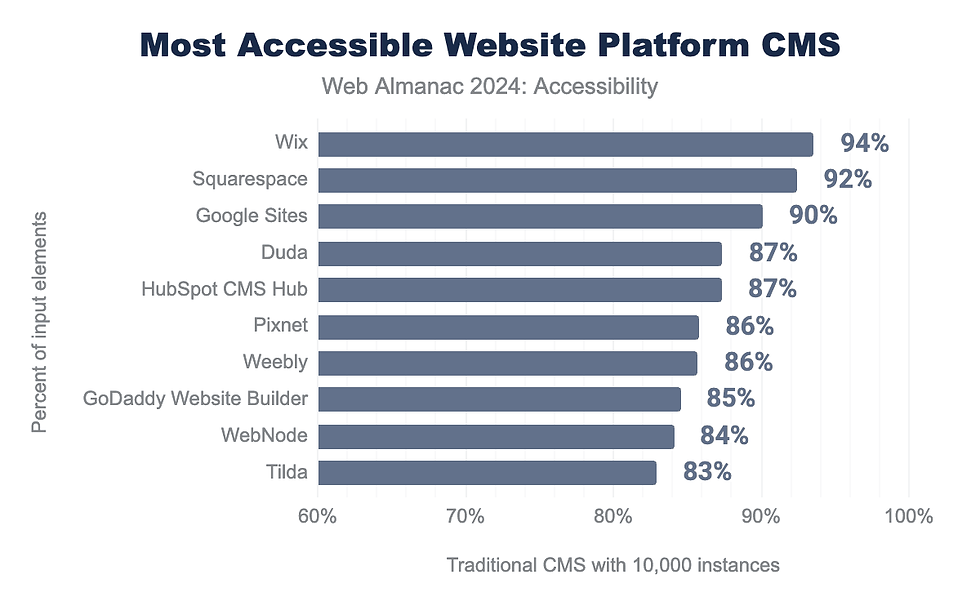
Source: 2024 Web Almanac, Accessibility chapter, HTTP Archive. Released November 2024.
2025 Median Lighthouse Accessibility Score by Platform
Rank | Platform | Desktop | Mobile |
1 | Wix | 95 | 95 |
2 | Squarespace | 94 | 94 |
3 | Webflow | 90 | 90 |
4 | Shopify | 89 | 89 |
4 | Duda | 89 | 87 |
6 | WordPress | 87 | 87 |
6 | Drupal | 87 | 86 |
8 | Joomla | 84 | 84 |
9 | PrestaShop | 79 | 80 |
10 | 1C-Bitrix | 76 | 76 |

Source: 2025 Web Almanac, CMS chapter, HTTP Archive. Released January 2026.
Wix held the top spot in both years.
What the Rankings Measure
Both the 2024 and 2025 Web Almanac reports run Google Lighthouse Accessibility Audits on millions of websites and group the results by platform. The score is specifically the median Lighthouse Accessibility score for sites built on each platform.
Lighthouse runs a series of automated accessibility checks against WCAG criteria.
Things like:
Color contrast
Alt text on images
Form labels
Heading order
Language attributes
ARIA labels
Link names
Keyboard navigation indicators
Focus visibility
Each site gets a 0-100 score. The platform ranking is the median score of all sites built on that platform.
Why Wix Scores So Well
Wix is a closed-source platform, which means Wix controls the underlying code, the templates, the form components, the heading structure, and the semantic HTML. Open-source platforms like WordPress give site owners more flexibility, but that flexibility also means more opportunities for accessibility problems to slip through. With Wix, the platform is doing more of the foundational accessibility work for you before you even start building.
A Reality Check
This does not mean a Wix site cannot be sued. Any site that is not built accessibly carries lawsuit risk regardless of the platform. Wix sites have been named in ADA lawsuits, just like sites on every other platform. According to UsableNet's annual digital accessibility lawsuit data, over 8,600 ADA website lawsuits were filed in 2025, and 67 percent of cases targeted small businesses with under twenty-five million in revenue. The platform you build on does not protect you. The accessibility of the site itself does.
What Wix gives you is a stronger starting point. You are building on a foundation that already scores higher than the competition for accessibility. The work then is making sure your specific site, with your specific content and your specific design choices, meets WCAG 2.1 AA from there.
This is part of why we build Care Identity and DFY sites on Wix. The platform is doing more of the foundational accessibility work for you than most platforms do, which means your designer (and you) start ahead of where you would on most other platforms.
Where Alt Text Actually Comes From on a Wix Site
This is one of the most overlooked pieces of how accessibility works on a clinician's site, and once you understand it, you stop worrying about manually writing alt text for every single image.
When you upload an image to Wix, if the alt text field is blank, Wix uses the filename as the alt text by default. That sounds technical until you realize what it means in practice. Stock image platforms like Magnific (formerly Freepik), Unsplash, Pexels, Adobe Stock, and Shutterstock all assign descriptive filenames at the source. They do this because their own search engines need to know what is in each image. So a stock photo of a doctor in a white coat downloads with a filename like female-physician-white-coat-stethoscope-modern-office.jpg. AI image tools work the same way. The filename reflects the prompt or a description of what was generated.
When you upload that image to Wix without touching the alt text field, the descriptive filename becomes the alt text automatically. Screen readers read it aloud. Search engines index it. The work is done before you even click publish.
What this means: for any image sourced from a stock platform or AI generator, you usually do not need to write alt text manually. The platform already did it for you.
The exceptions worth knowing.
Phone photos and personal camera uploads. Files named IMG_2847.jpg or DSC_0481.jpg carry no useful information. Either rename the file before uploading or write the alt text in Wix.
When the filename describes the image but not the context. A stock photo titled woman-laptop-coffee technically describes what is in the image, which meets the basic accessibility requirement. Whether you want to swap it for something more descriptive of the image itself, like woman working on laptop with coffee, is a judgment call. WCAG asks that alt text describe what is visually in the image. It does not require alt text to explain how the image relates to the page topic. Going deeper than what is visually in the image is an SEO optimization, not an accessibility requirement, and that work typically lives inside an in-depth SEO package or is something a clinician can layer in themselves over time.
When you or your designer auto-fills the alt text field with something generic. If your designer typed image or photo in the alt text field during build, that overrides the descriptive filename and you lose the benefit. Spot-check your alt text on a handful of pages to make sure this did not happen.
When the image is purely decorative. A background pattern, a divider line, a flourish that does not communicate anything. These should be marked as decorative inside Wix so screen readers skip them entirely. Alt text on a decorative image just adds noise.
The practical workflow this gives you. Pull stock images or AI-generated images for almost everything. Upload to Wix. Leave the alt text field alone. Spot-check a few pages to confirm the filenames carried through. Spend your editorial energy only on the homepage, services, and pricing where context-specific alt text genuinely strengthens the page. You are doing most of the alt text work without writing a single description manually.
Audit vs Scan, and What Actually Runs Automatically
The accessibility industry uses the word "audit" loosely, and clinicians get confused about which tools actually check their site automatically and which ones they have to run themselves. Here is the honest breakdown.
A scan is an automated check. Software runs against your site and flags what it can detect. Every automated tool, no matter the brand, catches roughly 30 to 40 percent of WCAG issues. The Wix Accessibility Wizard, WAVE, axe DevTools, and the scans built into widgets like accessiBe and UserWay are all scans. Useful, but limited.
An audit is a human review. A credentialed accessibility professional tests your site with a screen reader, keyboard, magnifier, and against the full WCAG 2.1 AA specification. They write up findings, prioritize fixes, and often recommend code changes. This is what the disability rights community considers a real audit. Most run between $2,000 and $50,000 depending on site size and depth. They happen once or twice a year if at all.
Most marketing in this industry calls scans audits because it sounds more thorough. They are not the same.
Now, what actually runs automatically, and what you have to run yourself.
Auto-scheduled scans: accessiBe, UserWay, and most other paid widgets run a monthly automated scan and email you a report. That is part of what you pay for. It is the same 30 to 40 percent detection as any automated tool, but it shows up in your inbox without you doing anything.
On-demand scans: the Wix Accessibility Wizard, WAVE, and axe DevTools do not run automatically. The Wix Wizard runs when you open it inside your editor and click scan. WAVE and axe run when you click the browser extension icon on the page you want to check. No emails. No scheduled reports. If you do not run them, no scan happens.
Manual audits: never automatic. You hire a human or you do it yourself with a checklist.
This is why a minimum quarterly cadence is recommended as a discipline you put on your calendar. The free tools do not remind you. They wait for you to open them. That is also why a widget can feel like it is doing more than the other tools, because it sends you something monthly. What it is sending is the same kind of automated scan you can run yourself for free, just delivered to your inbox.
The takeaway. If you are paying for a widget partly because it runs monthly scans, you are paying more for the inbox reminder than for the scan itself. The scan is the same. You can replicate the discipline for free by putting run Wix Wizard, WAVE, and axe DevTools on your calendar for at least every three months or each time you make edits to your site.
How the Three Free Accessibility Checkers Compare and Why You Need More Than One
The Wix Accessibility Wizard is a strong starting point, but it is not the only free tool, and it is not designed to do everything. Two other free browser extensions are what professional accessibility consultants actually use for second-pass audits. Layered together with Wix's checker, the three of them cover more than any single one alone.
Here is how they differ.
Wix Accessibility Wizard. Built into the Wix editor and designed specifically to scan Wix-built sites. It catches the things you can fix yourself directly inside Wix: missing alt text on Wix-uploaded images, form labels, page language, heading structure inside Wix templates, and link text. It tests editor-side data, meaning it knows what is in your Wix dashboard, but it does not test the rendered page the way a screen reader actually sees it after everything loads.
Best for: the first pass before launch and after every content update. Use this every time you publish a page or post.
Weakness: does not catch issues introduced by third-party tools, custom code, or how the page actually behaves once it loads in a browser.
WAVE by WebAIM. Free browser extension. Visual-first. When you run it on your live page, it injects colored icons directly onto the page showing you exactly where every accessibility issue lives, like sticky notes on top of your site. You see at a glance what is broken and where.
Best for: designers, content creators, and clinicians who want to see the problems in context without reading code. Especially useful during design reviews and content audits.
Weakness: may flag some false positives, especially for color contrast on complex backgrounds, and the icons themselves can clutter the page so you sometimes have to dig to figure out what each one is pointing at.
axe DevTools. Free Chrome extension developed by Deque Systems, the company that built the rules engine used by Microsoft, Google, and most other accessibility tools. Runs inside the browser developer tools panel. Code-first. Has a zero-false-positives policy, meaning every issue flagged is a real problem. Each issue links directly to the WCAG criterion it violates, so you know exactly which rule you are failing.
Best for: the most accurate technical check before launch and as part of any quarterly audit. This is the tool I run when I want a definitive answer on whether something is actually broken.
Weakness: the output looks more technical than WAVE, and the free version covers about 80 rules while the full 150+ rules require a paid tier (the free version is more than enough for almost every clinician site).
The single most important truth about all three of these tools: all automated accessibility tools share the same fundamental limitation. They catch approximately 30 to 40% of WCAG issues. The remaining 60 to 70% require manual testing by humans. None of these tools, run individually or together, replaces a manual keyboard navigation check or testing the site with a real screen reader.
Here is the practical workflow.
Before every launch or major content update. Run the Wix Accessibility Wizard inside the editor. Fix what it flags. Two minutes.
Before every launch or once a quarter. Run WAVE on the live page. Walk through the icons it places on your site visually. Address what is there. Five to ten minutes.
Once a quarter or after any major change. Run axe DevTools on every key page (homepage, about, services, pricing, contact, blog post). Fix the technical issues with the WCAG references. Save the report as part of your documentation. Ten to fifteen minutes.
Once a quarter at minimum. Manual keyboard check. Tab through every page. Make sure you can reach every link, button, and form field, that the focus outline is visible, and that the order is logical. Five minutes per page.
That layered workflow is what actually catches accessibility issues across your site. Any one tool alone misses too much. All three plus the manual check catches the majority of what an automated process can detect, and the manual check fills in what no automated tool can find.
A note on the Wix Wizard versus third-party tools. The Wix Wizard is run by the platform that built your site, which means it knows the Wix structure intimately. WAVE and axe are run by independent organizations with no commercial interest in your site looking favorable. When their reports agree, you have a confident result. When they disagree, the third-party tools are usually more accurate because they test what users and screen readers actually see, not what the editor thinks is there.
What Accessibility Widgets Actually Do
A widget is a piece of JavaScript. You drop one line of code into your site, a little floating button appears in the corner, and a patient can click it to adjust their experience. Most widgets offer text size adjustment, contrast modes, font changes for dyslexia, link highlighting, screen reader compatibility settings, and sometimes auto-generated alt text or keyboard navigation overlays.
Here is what they actually do well.
They give users a control panel. A patient with low vision who lands on your site can enlarge the text without leaving the page. That is genuinely useful. A patient with light sensitivity can flip to dark mode. A patient with dyslexia can swap to a friendlier font.
They demonstrate visible effort. Having a widget on your site signals to visitors that you considered accessibility. Layered on top of a site that seeks to prioritize it.
They cover some surface-level fixes that the underlying site missed. Auto-generated alt text on unlabeled images. Reading order adjustments. Contrast filters. Imperfect, but better than nothing on a site that has gaps.
Here is what they do not do.
They do not rewrite your source code. If your form fields are unlabeled, your headings are out of order, or your buttons are not real buttons, the widget cannot fix that. It can only paint over it. Automated tools, including AI-powered overlays, detect only 30% to 40% of WCAG violations. The other 60% to 70% live in the code itself.
They do not provide legal protection, despite the marketing. This is the part that got accessiBe fined and what UserWay is currently being sued over. The widget marketing has consistently promised lawsuit protection while the fine print said no warranty of any kind.
They can interfere with the assistive technology a patient is already using. Screen readers, magnifiers, and voice control software are configured to the user's needs. A widget that overrides those settings makes the site harder to use for the people it is supposedly built for. The National Federation of the Blind has been publicly critical of overlay widgets for this reason.
Widgets can be useful as a courtesy layer for users who want one, but they are not a compliance certificate or legal protection.
The Widget Market and Who Got Sued for What
This is the part most clinicians want clarity on. When the widget companies got hit, was it because the widget did not technically work or because the marketing promises were deceptive? The answer is both, but the major regulatory and class-action cases have mostly been about the false advertising, not the technical failure.
Here is the chart.
Company | Hit on technical performance? | Hit on false advertising or deceptive promises? |
accessiBe | Yes — Murphy v. Eyebobs LLC (2021) ruled the widget failed to provide screen reader users equal access | Yes — FTC fined accessiBe $1M in April 2025 for false advertising and fake customer reviews |
UserWay | Indirectly — customers running UserWay get sued at the same rate as accessiBe customers | Yes — Bloomsybox v. UserWay class action, filed 2024, recommended to proceed Feb 2026, over the $1M lawsuit-protection pledge being structurally impossible to claim |
AudioEye | Indirectly — Lighthouse for the Blind v. ADP TotalSource (2020-2021) settlement specifically prohibited continued overlay use | Yes — shareholder class actions alleging the company overstated product effectiveness; AudioEye also filed and later dropped a lawsuit against an accessibility expert who criticized them publicly |
EqualWeb | Indirectly — customers show up in the same lawsuit data as the others | No major regulatory action to date |
Now the plain English version of what each of those means.
accessiBe. The largest player. Two separate hits. First, the Murphy v. Eyebobs case in 2021 was the technical-failure case. A blind plaintiff documented that the accessiBe widget on Eyebobs' site failed on a promo pop-up, a modal dialog, and a star rating widget. Eyebobs lost, dropped accessiBe, hired a manual auditor, and remediated the site at the source. Then, in April 2025, the FTC came in on the marketing side. The FTC fined accessiBe one million dollars for false advertising, fake customer reviews, and overstating what the AI could do. The FTC was not ruling on whether the widget worked. They were ruling on whether the company lied about what it did.
UserWay. This is the one most clinicians have not heard about yet. UserWay marketed its widget as providing full WCAG and ADA compliance and offered a $1 million monetary pledge promising to reimburse customers if they got sued. A small online flower business called Bloomsybox bought a UserWay subscription, got sued anyway by a blind user, settled the case for $4,000, and went back to UserWay to claim the pledge. UserWay refused, saying the pledge only pays out if the lawsuit is litigated to a final judgment. Bloomsybox filed a class action arguing this is deceptive because UserWay knows website accessibility cases are essentially never litigated to judgment, they almost always settle, which means the pledge can almost never actually be claimed. In February 2026, a magistrate judge recommended the case proceed instead of being dismissed. The case is ongoing. The technicality is exactly what it sounds like. The promise was structured so the company would almost never have to pay out on it.
AudioEye. Hybrid model. Includes a widget plus a manual audit and remediation service in higher tiers. Customers running AudioEye still get sued. The Lighthouse for the Blind v. ADP TotalSource settlement in 2021 specifically prohibited ADP from continuing to use overlays going forward, which was a strong court signal that the overlay itself was part of the problem. AudioEye also filed a lawsuit against an accessibility expert who criticized them publicly, which AudioEye later dropped. The expert has called it a SLAPP suit. AudioEye has also faced shareholder class actions alleging the company overstated the effectiveness of its product to investors.
EqualWeb. Smaller and quieter than the others. Customers running EqualWeb show up in the same lawsuit data, but EqualWeb itself has not been hit with a major FTC action or class action that I have found.
Wix's native Accessibility Wizard. Not a widget in the traditional sense and not in any of these lawsuits. The wizard runs inside the Wix editor, scans your site, and flags issues for you to fix at the source. The fixes happen in the code. This is closer to what accessibility experts actually recommend.
The pattern across the widget market is consistent. The technical performance of every overlay is limited by the same thing: automated tools, including AI-powered overlays, detect only 30% to 40% of WCAG violations. The false-advertising hits are happening because the marketing promised more than the technology could deliver. The fine went to accessiBe because their claims were the most aggressive and best documented. The class action went to UserWay because the pledge was structured deceptively. The shareholder suits went to AudioEye for similar reasons. The pattern is the category, not one bad actor.
If you are running any of these widgets right now, you are not doing something wrong. Just understand that what you are running is a courtesy assistive tool, not a legal shield.
Are Sites With Widgets More Likely to Get Sued
The data on this is uncomfortable but worth knowing. According to UsableNet, 25% of all 2024 ADA digital lawsuits explicitly cited the accessibility widget itself as a barrier rather than a solution. In the first half of 2025, 456 ADA website lawsuits, or 22.6% of all filings, targeted sites that had accessibility widgets installed.
Roughly one in four ADA website lawsuits filed in this country right now is being filed against a site that paid for a widget.
There are two reasons. First, plaintiff attorneys figured out years ago that a widget in the code makes a site easier to find. Their automated scanners detect the widget script, flag the site, and run a screen reader test to document where the widget fails. Second, in court, the presence of the widget can actually work against the practice. If a plaintiff can show you were aware of accessibility issues because you installed a tool to address them but failed to actually fix them, that awareness works against you.
That said, this number needs context. The lawsuits are not happening because widgets exist. They are happening because the underlying sites were never built accessibly and the widget was sold as the entire compliance solution. A site that was built with accessibility in mind, runs the Wix Accessibility Wizard, has a real accessibility statement, and adds a widget as a courtesy layer is in a different category than a site whose only accessibility effort is the widget itself.
The lawsuit data is a warning about a category of site, not a verdict against the technology. Read it as: do not let the widget be your only strategy.
How a Compliant Site Loses Compliance the Moment You Touch It
You may be asking yourself "how do I stay compliant?"
A site that passes a manual WCAG audit on Monday can fail by Friday for these reasons.
You uploaded an image without alt text. The new product photo, the new team headshot, the new blog post hero image. If your alt text field is blank and Wix did not auto-fill it from the filename, that image is now an accessibility issue.
You added a new page. New content gets new headings, new buttons, new links, new forms. Each is a new opportunity for a violation.
You embedded a third-party widget or plugin. Calendly, Jane App, Practice Better, a chatbot, a video player. Each one brings its own accessibility profile, and not all of them are clean.
You changed a brand color. Your designer set up the site at a contrast ratio that passed WCAG AA. You decided you wanted a softer pink for the buttons. The new pink fails contrast. Now your site fails.
You wrote a new blog post. You used H4 before H3 because the layout looked nicer. You wrote click here as link text instead of download the patient intake form. You embedded a YouTube video without captions.
WCAG itself updated. WCAG 2.2 was published in October 2023 and added new criteria, including ones about target size for buttons and consistent help mechanisms. The DOJ formally adopted WCAG 2.1 AA as the legal standard for Title II in 2024, but WCAG 2.2 AA is what serious accessibility professionals are now building to.
Your designer is not necessarily cutting corners, being careless, or failing you. ADA compliance typically isn't part of standard web design scope. Most designers will structure a site as best they can, but deep accessibility work is a different specialty. Most designers do not hold ADA compliance certifications, and the ones who do charge for that expertise. Even if you hire a certified designer, the moment you start making edits to your site, that compliance can go right out the window. A new image without alt text, a new section with the wrong heading level, a new button that is not really a button. Compliance is not something you buy once. Websites are living things, and keeping them accessible is an ongoing practice, not a one-time deliverable.
How to Reduce Your Risk in Practice
Here is the layered strategy for clinicians who want to seriously reduce their accessibility risk. None of this gets you to 100% compliance. What it gives you is a real, working practice that you can point to if anyone ever asks what you did to keep your site accessible.
Layer one: the site's foundation should be checked against WCAG 2.2 AA. Color contrast checked. Headings in logical order. Form fields labeled. Alt text on every meaningful image. Keyboard navigation tested. This is the work an accessibility specialist does, and it is its own discipline. Most general web professionals focus on visual design, brand, and conversion, and accessibility is a specialty layer.
Layer two: run the three free checkers on a schedule. Wix Accessibility Wizard before every launch and content update. WAVE on every key page once a quarter. axe DevTools on every key page once a quarter. Save the reports.
Layer three: do a manual keyboard check every quarter. Tab through every page. Confirm you can reach every link, button, and form field, the focus outline is visible, and the order is logical.
Layer four: publish an accessibility statement on your site. Name the standard you target (WCAG 2.1 AA). Note your ongoing efforts. Provide a contact for anyone who hits a barrier. Update it once a year. The DOJ guidance at ADA.gov specifically recommends publishing a way for users to report accessibility problems so website owners can fix them. This is one of the strongest pieces of documentation you can publish.
Layer five: optionally, install a widget as a courtesy assistive tool. Not as your compliance strategy. Not because you believe the lawsuit-protection promise. As a control panel for users who want to adjust their own experience. Or skip it entirely and rely on the foundation. Both are defensible.
Layer six: keep a one-page accessibility log. Document what you did, what you fixed, what tools you ran, what reports you saved. Date it. This is the paper trail that turns a vague we tried into a documented here is what we did and when.
Red Flags to Watch For When Hiring an Accessibility Expert or Vendor
These are the warning signs to watch for when someone is specifically selling you accessibility services, an accessibility audit, a compliance package, or a widget. Most general designers do not market themselves as accessibility experts. This list is for evaluating the people who do.
They promise 100% ADA compliance. Nobody can deliver this. Anyone who says they can is selling you a false sense of security.
They promise lawsuit protection or immunity. Same problem. The FTC fined accessiBe a million dollars for this exact promise. Read the Terms of Service of anyone making this claim. The fine print almost always says no warranty of any kind.
Their entire compliance offer is we install a widget. This is the failure mode in the lawsuit data. The widget alone is not compliance.
They claim to offer ADA compliance but cannot tell you the standard they work to. WCAG 2.1 AA is the current standard. An accessibility expert should be able to name the version, the conformance level, and what is and is not included in their work, whether that is auditing, testing, remediating, or designing for accessibility. If they cannot, they may not actually be doing accessibility work.
They do not include an accessibility statement or point you to one. A real accessibility expert will either provide a starting template, point you to a free one online, or recommend you have an attorney draft one tailored to your practice. The accessibility statement is a public commitment about your practice, so it carries weight. Templates are starting points, not finished legal documents. For the most protective version, work with a healthcare or accessibility attorney.
They claim accessibility is included but cannot describe their testing process. A real accessibility expert can tell you whether they test with a keyboard, run automated checkers, review alt text, check color contrast, and audit heading order. If they cannot describe their process, the work probably is not happening.
They sell accessibility as a low-cost add-on. Real accessibility work takes hours and expertise. If someone is offering it as a $50 or $100 upcharge on a basic build, they are not doing real accessibility work. They may be installing a widget and calling it done.
They guarantee certification or pass rates. No one can guarantee a Lighthouse score, a WCAG conformance pass, or that you will not be sued. Anyone offering guarantees here is overstating what is possible.
If you see two or more of these red flags from someone selling you accessibility services specifically, keep looking.
A separate note for clinicians working with general designers (not accessibility experts). If your designer is not an accessibility specialist and does not market themselves as one, that is normal. Most designers focus on visual design, brand, conversion, and user experience. Accessibility is its own specialty layer that usually requires either an accessibility-focused expert, an accessibility consultant working alongside your designer, or an attorney to handle the legal review. Ask your designer what is included in their scope, and if accessibility is not part of it, decide separately whether you want to layer in that work, source a template-based accessibility statement, or work with a specialist.
For a deeper read on the difference between sites that look polished and sites that perform, my breakdown of what custom actually means in this industry covers that gap.
Should You Use a Widget? The Honest Final Answer
Yes, if the site underneath is built with accessibility in mind, you are using the widget as a courtesy control panel for users who want one, you understand it is not a legal shield, and you do not believe the lawsuit-protection marketing.
No, if the widget is your entire accessibility strategy, the underlying site has not been built or audited for accessibility, or you are paying for the widget because the vendor told you it makes you compliant or protects you from lawsuits.
Either way: skipping the widget is also a defensible position if your site is built well, you run the three free checkers, you have an accessibility statement, and you keep up with the maintenance schedule. The widget is a tool, not a requirement.
Where to Verify This Yourself
The accessibility space changes. Rules update. Cases get decided. Here are the authoritative sources every clinician should bookmark and read directly. They are written for businesses and the public, not for lawyers, so they are more readable than you might think.
ADA.gov Web Accessibility Guidance The Department of Justice's official guidance on what website accessibility means and what businesses should do. This is the closest thing to a federal checklist that exists for private practices. Read this first.
WCAG 2.1 Quick Reference The technical standard published by the W3C. The page lists every success criterion and lets you filter by level (A, AA, AAA) and by version (2.0, 2.1, 2.2). Level AA is what the DOJ and courts use as the working benchmark for ADA accessibility.
W3C Web Accessibility Initiative (WAI) The organization that publishes WCAG. Their Introduction to Web Accessibility and Tips for Getting Started pages are written in plain English for non-technical people.
ADA National Network: Title III Fact Sheet Plain-English overview of what Title III actually requires of private businesses, including healthcare practices. The ADA National Network is funded by the U.S. Department of Health and Human Services and is one of the most reliable non-government sources for understanding the law.
U.S. Access Board The federal agency that develops the technical accessibility standards the DOJ adopts. Useful for understanding where the rules come from and how they evolve.
If you want legal advice for your specific practice, contact an accessibility expert or attorney.
A Real Note About What Designers Actually Provide
A note worth pausing on before you walk into a conversation with any designer about ADA compliance.
Not every designer offers this foundation. Of the designers who do, the depth varies widely depending on what services you purchase. Manually labeling every image with descriptive, context-specific alt text is time-consuming, and most designers will charge an additional fee for it on top of the agreed-upon scope of work. That kind of detail typically lives in an in-depth SEO package rather than in a basic SEO one-time setup, which typically only focuses on the meta titles and metadata descriptions.
Ask your designer specifically:
Do you build the foundation to WCAG 2.1 AA from the design phase?
What do you do for alt text during the build, and what is included in the foundation?
What would it cost to layer in deeper accessibility work beyond the foundation?
Whatever you negotiate with your designer is the foundation. Read that word carefully. Foundation. As this post has laid out, you are responsible for what happens after launch:
Checking the site at least quarterly with the free tools
Updating alt text and headings every time you add new content
Saving your audit reports as part of your paper trail
Sourcing, reviewing, and publishing an accessibility statement (more on that below)
A widget can help with one piece of that ongoing work. Some widgets run automatic monthly scans and email you a report, which can be useful if you want a recurring nudge.
A clear note on accessibility statements specifically. The accessibility statement is your public commitment about how your practice handles accessibility, and sourcing it is the clinician's responsibility, not the designer's. You have three options:
Most widgets provide an accessibility statement template as part of their service. If you use a widget, that is usually the easiest source.
A healthcare or accessibility attorney can draft one tailored to your practice. This is the most protective route.
Free templates exist online from W3C and disability advocacy organizations. You can use them at your own risk, knowing they are generic and may not reflect your specific practice or the standards you actually meet.
Whichever route you choose, you are the one publishing it on your site. Before it goes live, review the language carefully. Confirm it accurately reflects your practice. Ideally have an attorney review it. The statement carries weight because it is a public commitment, and once it is on your site, you are accountable for what it says.
For full transparency: we currently use a widget, accessiBe, on our Care Identity site as a courtesy assistive tool layer, knowing what it does and what it does not do, knowing the limitations covered earlier in this post. The widget industry is shifting, and the tool we use may shift with it. That is a transparency note, not a recommendation. Whether you use a widget at all is up to you, and which one you pick is a decision worth making with your eyes open after reading everything in this post.
For specific legal questions about your accessibility statement, what it should include, or how to handle a complaint, talk to a healthcare or accessibility attorney. That is not something a designer should be writing for you.
The point is this. No designer, no widget, no audit, no agency hands you a finished, permanently compliant site. You are the long-term owner of your accessibility work. The designer can help lay the foundation. The maintenance is yours.
You Cannot Make Your Website 100% ADA Compliant
Nobody can. Anyone who tells you otherwise is selling you a a false sense of security.
What you can do is build the layers, run the scans, run the audits, publish the statement, keep the paper trail, and understand exactly what you are running and why. Use a widget as a courtesy if it helps your patients, or skip it.
Document the work. That is what taking this seriously looks like.
FAQs
Is my private practice website required to be ADA compliant? Yes. Title III of the ADA covers private healthcare practices as places of public accommodation. The DOJ has consistently treated WCAG at Level AA as the working benchmark in enforcement actions and settlement agreements, and courts have accepted WCAG 2.1 AA and 2.2 AA as the standard for measuring whether a website is accessible. There is no specific federal statute for private business websites yet, but WCAG 2.1 AA is what serious accessibility professionals build to. See ADA.gov for the federal guidance.
Can a website be 100% ADA compliant? No. WCAG 2.1 AA, the standard courts use as the legal benchmark, has 56 success criteria. The rules update, browsers change, and content gets added after launch. Even a perfect manual audit is a snapshot in time. The practical standard is documented, layered, ongoing accessibility work, not perfection.
Can anyone sell me 100% ADA compliance? No. No designer, agency, accessibility consultant, widget company, or auditor can sell you 100% ADA compliance. Anyone making that claim is selling you a feeling. The FTC fined accessiBe a million dollars for this exact promise. The honest standard is documented, layered work.
Do accessibility widgets like accessiBe and UserWay actually prevent lawsuits? No. UsableNet data shows 22.6% of ADA website lawsuits in the first half of 2025 targeted sites running widgets. The FTC fined accessiBe $1 million in April 2025 for false advertising about exactly this claim. UserWay is currently facing a class action over the same kind of promise.
Where can I read the actual federal rules myself? The DOJ publishes its web accessibility guidance at ADA.gov. The WCAG 2.1 technical standard is published by the W3C at w3.org/WAI/WCAG22/quickref/. The ADA National Network has plain-English fact sheets at adata.org. Links to all three are in the Where to Verify This Yourself section above.
Does Wix help with ADA compliance? Yes. Wix includes a built-in Accessibility Wizard that scans for code-level issues, supports semantic HTML, lets you set alt text and form labels, and lets you publish an accessibility statement. It is not a manual audit, but it covers the foundation.
Do I need to write alt text manually for every image on my Wix site? No, usually not. Stock image platforms like Magnific (formerly Freepik), Unsplash, and Adobe Stock assign descriptive filenames at the source, and Wix uses the filename as the default alt text when the alt text field is blank. For stock photos and AI-generated images, the alt text is usually already in place automatically. Manual alt text is only needed for phone photos with generic filenames, decorative images that should be hidden from screen readers, and high-priority pages where you want context-specific alt text.
Can I check my own site for accessibility issues? Yes. Three free tools used together cover most automated checks. The Wix Accessibility Wizard runs inside the editor and catches the most common Wix-specific issues. WAVE by WebAIM is a free browser extension that places visual icons on your live page showing where issues are. axe DevTools is a free Chrome extension with a zero-false-positives policy that links each issue directly to the WCAG criterion it violates. Layer all three plus a manual keyboard check. No automated tool catches more than 30 to 40 percent of WCAG issues alone.
What is the accessibility statement and where does it go? A short page on your website that names the standard you target (WCAG 2.1 AA), describes your ongoing accessibility efforts, and gives a contact for users to report barriers. It usually lives in the footer of your site. The DOJ guidance at ADA.gov recommends publishing a way for users to report accessibility problems so website owners can fix them.
How often should I audit my site for accessibility? Run the Wix Accessibility Wizard before every launch and after every major content update. Run WAVE and axe DevTools every quarter on your key pages. Do a manual keyboard check every quarter. After any redesign, treat it like a new build and audit before launch.
What happens if I get sued for accessibility? Most ADA website cases settle. The typical settlement involves remediation of the site and attorney fees. Documented accessibility work, an accessibility statement, and a paper trail of audits are what serious accessibility attorneys advise clients to maintain because they substantially strengthen your position. Operating without any of those leaves you exposed. For specific legal advice, consult a healthcare or accessibility attorney.
Should I use a widget or skip it? Either is defensible if the underlying site is built accessibly. Use a widget as a courtesy control panel for users who want one. Skip it if you would rather rely on the foundation alone. Do not use a widget as your only compliance strategy, and do not rely on any vendor's lawsuit-protection promise.
Cited Resources
Anchor text | URL |
FTC fined accessiBe $1M in April 2025 | |
Bloomsybox v. UserWay class action | |
WAVE by WebAIM (3 places) | |
axe DevTools (3 places) | |
DOJ guidance at ADA.gov | |
DOJ's foundational accessibility toolkit | |
WCAG 2.1 quick reference | |
ADA.gov main site | |
W3C Web Accessibility Initiative (WAI) | |
ADA National Network: Title III Fact Sheet | |
U.S. Access Board |